
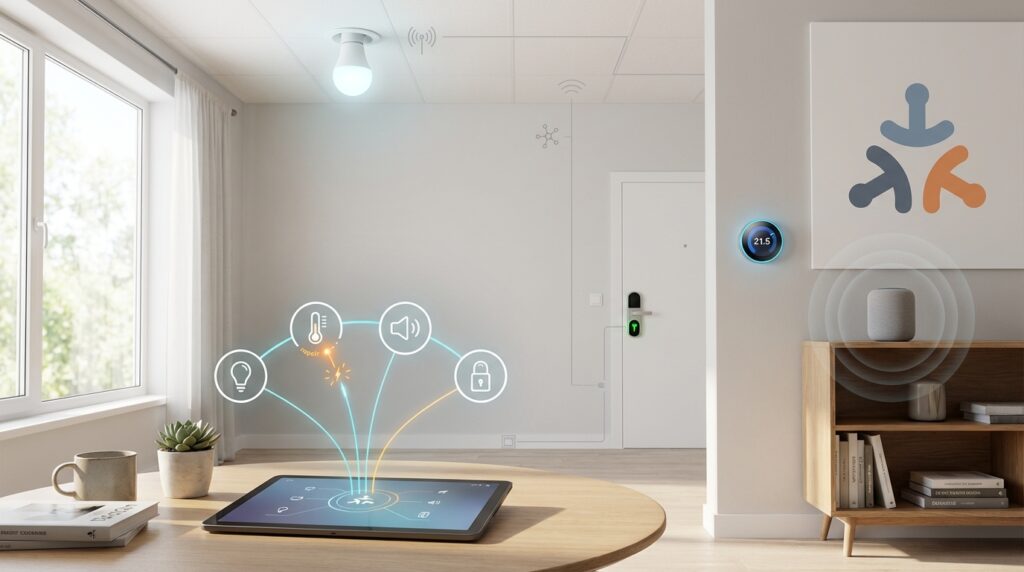
Welcome to our comprehensive guide for smart home enthusiasts! If you’re working with the new Matter standard, you know how promising this technology can be. Matter represents a major step forward for home automation, allowing different brands to work together seamlessly.
This connectivity standard, launched in October 2022, was developed by industry leaders like Google, Apple, and Amazon through the Connectivity Standards Alliance. The best part? Matter devices operate locally without needing constant internet access. They communicate using your home network through Wi-Fi, Ethernet, or Thread technology.
Many users encounter challenges when setting up their smart home ecosystem. We understand how frustrating pairing problems and connectivity failures can be. That’s why we’ve created this practical resource to help you overcome common obstacles.
You’ll find step-by-step solutions for everything from initial setup to advanced configuration. Whether you use Google Home, Apple Home, Home Assistant, or other platforms, this guide provides essential information. We’ll help you build a reliable network that works consistently.
For specific pairing challenges, check out our detailed tips for Matter device pairing issues. These practical solutions address the most frequent problems users face during setup.
Key Takeaways
- Matter is a new smart home standard that enables cross-platform compatibility
- Devices operate locally without requiring cloud services or constant internet
- Common issues include pairing failures and connectivity drops
- Proper setup requires specific network conditions and permissions
- This guide provides practical troubleshooting steps for various platforms
- Network stability is crucial during the device addition phase
- Platform-specific solutions exist for Apple, Android, and Alexa ecosystems
Overview of Matter Device Pairing and Connectivity Challenges
The promise of seamless home automation often meets reality when pairing issues disrupt the setup process. Many users encounter frustrating obstacles that prevent their smart home ecosystem from working as intended.
Identifying Common Connectivity Errors
Specific error messages provide clues about what’s going wrong with your setup. Understanding these signals helps you pinpoint the exact problem area.
Here are the most frequent connectivity errors and their likely causes:
| Error Message | Likely Cause | Primary Platform |
|---|---|---|
| “Could not contact Google” | Missing VID/PID combination | Google Home |
| “Can’t reach device” | Thread credential issues | Multiple platforms |
| “Matter is currently unavailable” | Missing module downloads | Apple Home |
| Device appears offline | Network interference or firmware | All platforms |
Understanding the Impact on Smart Home Integration
Connectivity problems affect your entire smart home system. Devices that work intermittently create reliability issues throughout your automation setup.
“A reliable smart home depends on consistent communication between all connected devices.”
Network configuration plays a crucial role in device performance. Router settings like device isolation or incompatible frequency bands can disrupt your smart home integration.
Recognizing whether your challenge involves initial pairing or ongoing maintenance helps you choose the right solution path.
Prerequisites and Setup for Effective Troubleshooting
Successful smart home integration begins with verifying your system’s compatibility. Taking time to check these fundamentals can save you from frustrating connectivity issues later.
System Requirements and Firmware Updates
Your mobile device must meet specific standards. Android phones need version 8.1 or higher, with version 12+ recommended for optimal performance. iPhone users require iOS 16 or later.
Keep your phone powered on and charging during setup. Google Play Services modules may take up to 24 hours to download automatically. This background process is essential for proper functionality.
Always verify that all firmware updates are installed. Check your smart devices, hubs, and network equipment. Current software versions ensure compatibility with the latest protocols.
Network Configuration and Router Considerations
Most smart home devices only support 2.4 GHz Wi-Fi networks. Make sure your router broadcasts on this frequency band. Your phone should connect to the same network during the setup process.
Thread devices require compatible border routers for communication. Options include Nest Hub (2nd Gen), HomePod Mini, or Home Assistant with OpenThread Border Router. These bridges enable seamless connectivity between different network types.
Router settings should allow local device communication. Disable isolation features that might block connections. Position your phone within good range of both the router and your new device during pairing.
“Proper preparation prevents poor performance in smart home ecosystems.”
Home Assistant users should note specific requirements. The Matter server add-on doesn’t work on 32-bit platforms. Verify your Thread network is active before adding Thread-based devices.
Matter Troubleshooting Best Practices
When your smart home devices refuse to cooperate, having a structured approach can transform frustration into resolution. Following systematic procedures helps you isolate problems efficiently rather than guessing randomly.
Step-by-Step Troubleshooting Procedures
Begin by gathering essential data about your setup environment. Check module installations and verify all firmware versions are current.
Review system logs and document any error messages that appear. This information creates a clear picture of what’s happening.
Work through basic checks methodically. Ensure Bluetooth is enabled and your device is in pairing mode. Confirm network connectivity and update all relevant apps.
Key Resources and Developer Tools
Android Debug Bridge (adb) offers powerful diagnostic capabilities for advanced users. Install adb on your computer and enable Developer Options with USB Debugging on your Android phone.
Use specific commands to test module installations. For example, “adb shell dumpsys activity provider com.google.android.gms.chimera.container.GmsModuleProvider | grep ‘com.google.android.gms.home'” verifies proper setup.
Community forums and developer support pages provide additional guidance. The Google Home Developer Console and manufacturer documentation offer valuable troubleshooting information.
Diagnosing Common Matter Connectivity and Pairing Problems
Diagnosing connectivity issues requires a systematic approach that examines both device credentials and network conditions. When your smart home setup encounters obstacles, understanding error messages provides the fastest path to resolution.
This process involves checking device states and interpreting specific failure codes. Each error contains valuable information about what’s preventing successful integration.
Verifying Device Credentials and Testing Pairing Mode
Always confirm your device is in proper pairing mode before beginning setup. Different manufacturers use unique button sequences or LED patterns to indicate readiness.
Check that Vendor ID and Product ID combinations match your platform requirements. Use Bluetooth tools like nRF Connect to verify these values during the commissioning process.
Device credentials must include valid Certification Declarations and Attestation Certificates. These ensure secure communication between your matter device and the controlling platform.
Analyzing Error Messages and Module Installations
Specific error messages reveal distinct problems. “Unable to Find Your Matter Device” typically indicates Bluetooth or Wi-Fi connection failures between your phone and the target device.
“Unable to Connect to Wi-Fi Network” suggests credential issues or incompatible frequency bands. “Pairing Uncertified Matter Device” means your platform doesn’t yet support that device category.
For Thread devices showing “Can’t reach device” errors, clear stored credentials through Google Play services settings. Factory resets often resolve stubborn pairing problems, but always keep your setup code accessible for re-commissioning.
Integrating Google Home, Home Assistant, and Other Matter Devices
Cross-platform compatibility represents one of the most significant advantages in today’s smart home landscape. This flexibility allows you to control devices through multiple systems simultaneously.
An Overview of Multi-Platform Integration
The multi-fabric feature supports at least five different controllers per device. You can add the same smart device to Google Home, Apple Home, and Home Assistant simultaneously.
Home Assistant runs its own controller through the Matter Server add-on. This establishes a WebSocket connection between your network fabric and Home Assistant services.
Thread devices require border routers to forward traffic between networks. Compatible options include Nest Hub, HomePod Mini, or Home Assistant with OpenThread.
Commissioning Tips for a Seamless Connection
The commissioning process differs between iOS and Android devices. iOS users scan QR codes and may encounter “Uncertified Accessory” warnings for test boards.
Android users typically see automatic pop-ups when devices enter pairing mode. Choose the Home Assistant app when prompted during the setup process.
To share devices from other platforms, select “Yes, it’s already in use” in the Home Assistant app. Then choose which controller (Google Home or Apple Home) contains the device.
Remember that while Matter provides universal basic control, native integrations often offer more advanced features. Philips Hue’s official integration, for example, provides full scene access unavailable through the standard protocol.
Advanced Considerations for Matter Device Setup
Advanced setup scenarios require precise attention to technical details that govern device recognition and communication. When standard pairing methods don’t work, examining identification systems often reveals the solution.
Reviewing VID/PID and Module Verification
The Vendor ID and Product ID values must match between your device and Google Home Developer Console. Test VIDs from 0xFFF1 to 0xFFF4 work for basic testing but cannot be used in formal development phases.
Using apps like nRF Connect for Mobile gives you direct access to Service Data fields. You’ll see VID/PID information in little endian format. But the Developer Console needs big endian entries.
For example, 5A23FFFE becomes 235A and FEFF respectively. Make sure you convert formats correctly.
Module verification is critical for persistent issues. Check that Google Play Services has downloaded necessary modules. Run specific adb commands to query the module provider service.
The command “adb shell dumpsys activity provider com.google.android.gms.chimera.container.GmsModuleProvider | grep ‘com.google.android.gms.home'” should return version data. This confirms successful installation.
When test devices don’t appear in your Test Suite, the problem often involves duplicate VID/PID combinations. Remove all test devices and re-pair with unique values in your firmware.
Manufacturer support becomes essential for advanced scenarios. They provide specific firmware updates and documentation. This is particularly important when choosing compatible smart switches for your setup.
Review detailed logs from your Matter server and companion apps. They help identify subtle timing issues or certificate problems. SDK version compatibility matters significantly for reliable operation.
Conclusion
Building a reliable smart home ecosystem requires ongoing attention to device maintenance and network optimization. This comprehensive guide has equipped you with solutions for common pairing challenges and connectivity issues.
Regular maintenance prevents future problems. Check for firmware updates frequently on your devices, hubs, and companion apps. Review your network settings periodically to ensure optimal performance within your home’s range.
If you’ve exhausted all troubleshooting steps, don’t hesitate to seek support. Gather diagnostic data like error messages and device information. Contact manufacturers or community forums for assistance with persistent issues.
This knowledge empowers you to maintain stable, responsive control across all your preferred platforms. The evolving technology landscape means staying current with updates ensures you benefit from new features and improved compatibility.